This inspector lets you change the properties of a trading account or a stock position. Through the inspector, you can also move a trading account at a given date from one bank to another one. This is particularly useful if you need to transfer the average cost and quantity of each stock you hold when you change your Bank.
The Trading Structure inspector is only visible if the Trading Structure view is visible.
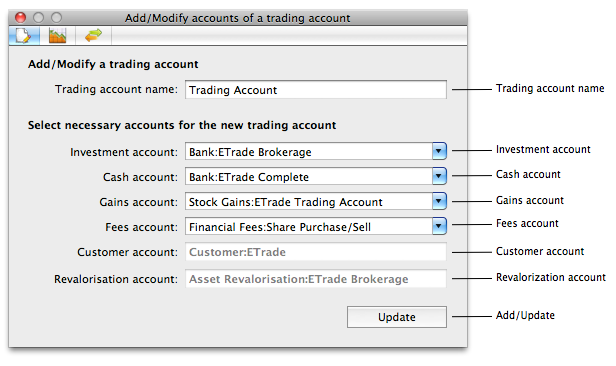
When you click on a trading account in the Trading Structure View, or drop a new item below an Institution (creation of a trading account), the pane will modify itself to show the trading account details. You can change the trading account name, and alter the set of standard accounts necessary to operate such investment account.
-
Trading Account name: You can change the trading account name, providing that the trading account is unique.
-
Investment Account: Select the bank account that will hold the stocks you purchase. This account should ONLY be used to hold stock, otherwise the revalorisation will not work.
-
Cash Account: Select the bank account that will be used to either draft the money necessary to buy the stock or receive a portion of the proceeds of a sale (typically the cost value). This account can be a standard bank account, providing that it is in the same bank as the investment account.
-
Gains Account: Select the income account that will be used to hold the gains or losses of a stock sell. This account is expected to be in subclass 'Stock Gains'.
-
Fees Account: Select the expense account that will be used to hold the fees incurred during a transaction. This account is expected to be in subclass 'Financial Fees'.
-
Customer Account: BudgetInMind manages this account automatically. It is the Customer account that has the name of the Bank Institution (full name is 'Customer:Bankname').
-
Revalorisation Account: BudgetInMind manages this account automatically. It is the account that has the name of the investment account you selected and resides in subclass 'Asset Revalorisation' (full name is 'Asset Revalorisation:InvestmentAccountName').
-
Update: You must click on this button for the changes to take effect.
Tip: Bear in mind that a trading account needs 6 standard accounts to operate: the investment account holding the stock positions, a cash account to place the proceeds of a sale or to get the cash when buying a share, the gains/fees account to ventilate the transaction gains/fees, a customer account to hold temporary operations and finally a revalorization account that will permit an automatic valorisation of your standard investment account according to the stock value.
Therefore, it is not wise to temper with these accounts once you have set them. There should be very little reason to alter them, so be very cautious when modifying a trading account.
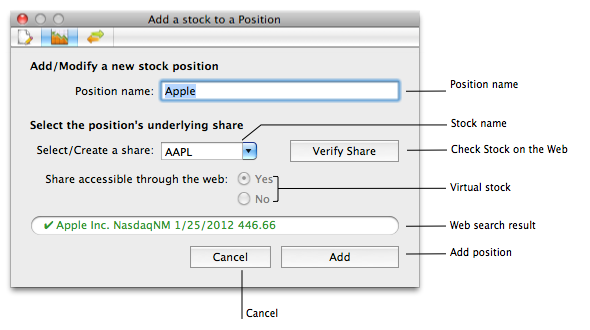
When you click on a position in the Trading Structure View, or drop a new item below a Portfolio (creation of a position), the pane will modify itself to show the position details. You can change the position name, set and verify the underlying stock, and let BudgetInMind know if the stock is not accessible on the Web (may happen with some 401K investments that are not publicly traded.
-
Position name: You can change the position name, providing that the fullname account 'PortfolioName:PositionName' is unique.
-
Stock name: You must specify a valid stock when you create a position (go to yahoo.finance.com to find the symbol). Once a position is created, you cannot change its stock.
-
Check Stock on the Web: Click this button to ask BudgetInMind to fetch stock information on the web. If successful, the stock can be automatically updated. If not, you should set the stock as virtual (see below).
-
Virtual stock: Click on 'Yes' if the stock cannot be access from the Web, 'No' otherwise.
-
Cancel: This button is only visible when you create a new position. Use it to cancel the new position drop operation.
-
Add: You must click on this button for the changes to take effect.
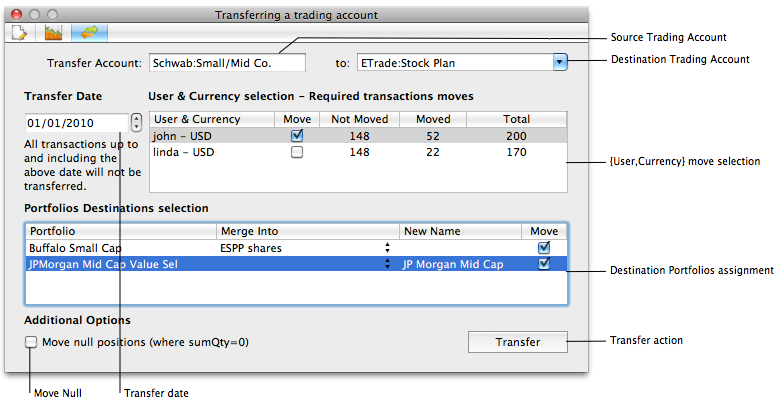
In rare occasions, you may require to move a Trading Account from one bank to another one. This operation requires special care since we must transfer the historical cost for each position. BudgetInMind simplifies this tedious process through this wizard. To enable this pane, you must first select a trading account (that will be the 'source') and click on the transfer button on the top of the inspector.
-
Source Trading Account: This is the trading account that you selected and that will be moved.
-
Destination Trading Account: Select an existing trading account. If you don't have the one you need, create the Trading account, then you can reselect the source account and move it.
-
Transfer Date: All transactions before and up to this date will be kept in the source account. All transactions occuring at a later date will be moved to the destination account.
-
{User,Currency} move selection: You can choose to move the account for all users and currency, or you can select move a subset. This table will show you how many transactions will be altered.
-
Destination Portfolios assignment: You must decide the organization of the positions at destination. You can move a source portfolio into an existing destination portfolio only if each source position doesn't exist at destination or the position exists and has the same stock. In this case, all transactions will merged which will alter the average cost. You can also decide to drop the portfolio in a new portfolio. BudgetInMind will only allow you to perform a valid operation, so you will be warned if there is an issue.
-
Transfer: You must click on this button to execute the transfer.
Note: BudgetInMind will tag the various book entries generated by a transfer so that you can quickly spot them in the Book entry. However, moved existing transactions will not be tagged.