The Account Structure inspector is only visible if the Account Structure view is visible. It lets you change the properties of an account or a subclass.
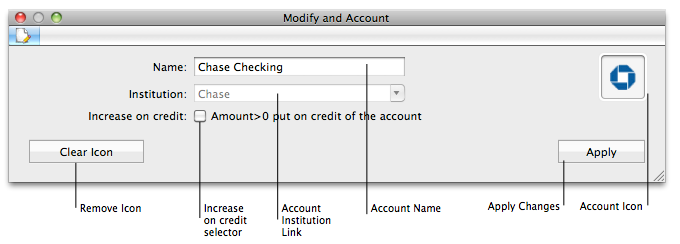
When you click on an account in the Account Structure View, the pane will modify itself to show the account details. You can change the account name, alter the institution, and finally inverse the polarity of the account (ie. where an increase of the account goes).
-
Account name: You can change the account name, providing that the account fullname "SubClass:Account" is unique.
-
Account Institution: You can alter the institution if it is a bank account and if the account has no transactions.
-
Increase on Credit: You can inverse the polarity of the account by clicking on the control. Typically, and unless you understand well accounting theory, you should never alter the polarity assigned by BudgetInMind at the creation of the account. Tempering with this control can make your entire accounting wrong. Typically, Income and Liability accounts have an increase on Credit, Expenses and Asset accounts don't.
-
Clear Icon: Click on this button to remove the Icon you had previously set by dragging an icon image over the icon column in the Account Management main view.
-
Apply: You must click on this button for the changes to take effect.
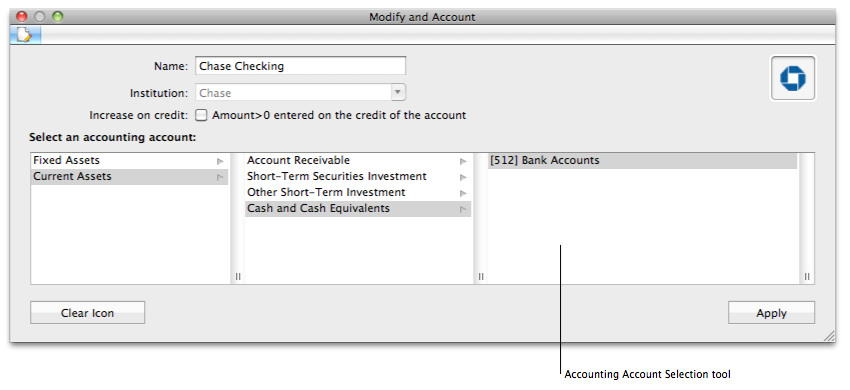
In the PRO version, you have the capability to see both a "human tailored" accounting view and a standard financial accounting view (used by Companies). If you enabled the Accounting Account module, the pane will expand to present the accounting account selection browser. Indeed, it this mode, you must attach each of your accounts to an accounting account so that BudgetInMind can create both views.
-
Accounting Account Selection: Use the browser to select which Accounting Account you want to link to the account you create/alter.
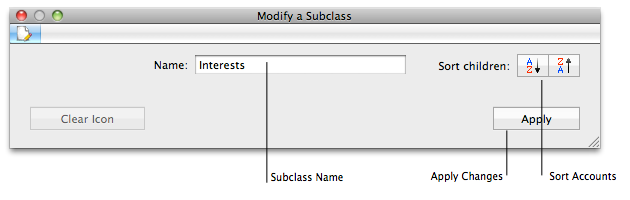
This pane allows you modify a subclass and/or change the sorting of its accounts.
-
Subclass Name: You can change the subclass name, providing that the subClass is unique.
-
Sort Accounts: Press the button to either sort the accounts in the subclass in alphabetical order or in inverse alphabetical order. Note that sorting takes effect immediately.
-
Apply: You must click on this button for the name change to take effect.