The Bank Account view provides an immediate access to all the transactions made on a given bank account. The content can be filtered using either the inspector or the toolbar icons. To learn more about filtering, see Search & Filtering pane and Toolbar.
To open a Bank Account View
Do one of the following:
-
Choose Navigate > Bank Accounts then click on the desired bank account.
-
In the Navigation pane, click on the desired bank account.
-
In the Toolbar, click the Navigation icon, then select Bank Accounts and the desired bank account.
-
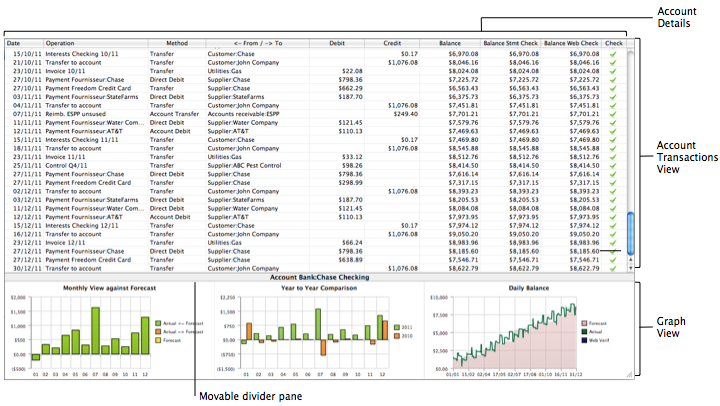
Account Details: For each transaction, you can see the date, operation, payment method, its dual account and whether the operation is debited from or credited to the account. The 3 different types of balance are shown on the right part of the table.
-
Account Transactions View: Each line corresponds to a different transaction between 2 accounts (the one we look at and its dual account). Click on the Check icon on a given line to change its verification level.
Tip: Once you selected a line, you can navigate between accounts by clicking the dual account name.
Note: Autogenerated transactions will appear in light grey. -
Graph View: At the bottom of the view, you can select various graph views to display the transactions more visually. To learn more about the various graph types, see Graph Views.
-
Movable divider pane: Drag the thin line below the account name to expand or collapse the graph view.